
WebP Product Images WordPress Plugins Break Galleries and Feeds
July 29, 2026 · 8 min read · by Aashirvad Kumar
Your credits refresh every month for as long as ListingRVA AI exists. No renewals, no annual increases, nothing to cancel.
Available on select plans. No renewals, ever.
July 29, 2026 · 8 min read · by Aashirvad Kumar
You install a converter because PageSpeed Insights told you to serve images in next-generation formats, the plugin reports four thousand files optimised, and a week later a customer emails to say the photos will not load. You open the category grid and a third of the thumbnails are broken frames. WebP product images WordPress plugins generate are usually a real win on transfer weight, which is exactly why this failure is hard to catch: the plugin dashboard is green, the homepage looks perfect, and the damage sits in the sub-sizes, the zoom and the outbound feeds nobody opens.
The plugins are not badly written. They are operating on a media library that WooCommerce has quietly extended, and the two systems disagree about which file is authoritative. Almost every complaint about WebP product images WordPress stores serve badly traces back to that single disagreement rather than to the format itself, which compresses product photography perfectly well. Once you know where the disagreement happens, the fix is mechanical and takes an afternoon rather than a rollback.
Uploading a single product shot does not create a single file. WordPress generates a set of registered sub-sizes: thumbnail at 150 pixels, medium at 300, medium large at 768, large at 1024, and whatever else your theme registers. WooCommerce then adds its own on top, including the catalog thumbnail, the single product image and the small gallery thumbnail, each with its own crop rule set under Appearance and Customize. One upload can produce nine files.
The list of those files, with their exact dimensions and filenames, is written into the attachment metadata in the database. WordPress reads that record to build the srcset attribute, and WooCommerce reads it to populate the data attributes the gallery uses for zoom. Neither of them checks the disk at render time. If a conversion plugin changes what is on disk without changing that record, every page still asks for filenames that are no longer there, and the browser gets a 404 for an image it was told existed.
That record is the thing to keep in mind for the rest of this. WebP product images WordPress plugins create are new files with new names, and a converter has to decide what to do about nine existing database references per upload. Some rewrite them, some regenerate them, and some ignore them entirely and hope the theme never asks. The strategy your plugin chose determines every symptom you will see, so identifying it is the first diagnostic step rather than reading the settings screen.
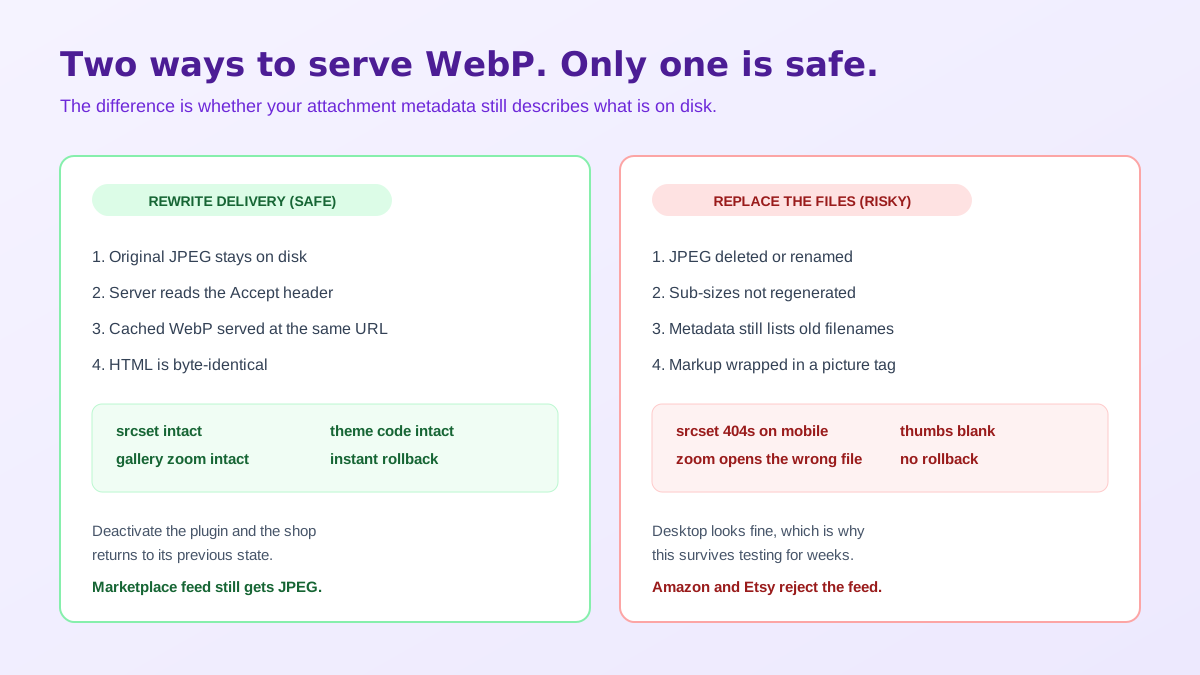
Broadly there are two designs. The first leaves your originals untouched and intercepts delivery: the server checks whether the incoming request advertises WebP support in its Accept header, and if it does, it serves a converted copy from a cache directory under the original URL. Nothing in your markup changes. The second rewrites the markup instead, either swapping the src to a .webp path or wrapping the img in a picture element with multiple source children.
The delivery method is the one you want on a shop. Because the HTML is identical, theme code, gallery scripts and anything reading image attributes carry on working, and turning the plugin off restores the old behaviour instantly. The markup method is where the reports of broken galleries come from, and it is worth understanding precisely why rather than treating it as bad luck. Image weight is genuinely worth chasing, and the sizing side of the same problem is covered in the WooCommerce product image size guide.
The WooCommerce product gallery is not a plain set of images. It reads data attributes off each img element, including the full size source and its dimensions, and hands them to the lightbox and the hover zoom. Wrap that img in a picture element and the browser may well paint the correct WebP, but the gallery script is still reading the attributes it wrote, so the zoom loads the old path and fails, or opens the 300 pixel thumbnail at full screen and looks catastrophically soft.
The same mismatch shows up in srcset. WordPress writes srcset from the metadata record, so if your converter produced WebP copies only for the full size file, the browser picks a candidate that does not exist at small viewports. On a phone, which is where most of your shoppers are, that means a blank frame while the desktop you tested on looks fine. Check a category page in a narrow window before you declare a conversion successful.
There is a quick way to tell which strategy you are dealing with without reading any documentation. Open a product page, view source, and look at the image markup. If the src still ends in .jpg while the network tab shows a WebP response, you have the delivery method and the metadata is untouched. If the src itself ends in .webp, or the img now sits inside a picture element, the plugin has rewritten your markup and you should assume the sub-sizes need attention.
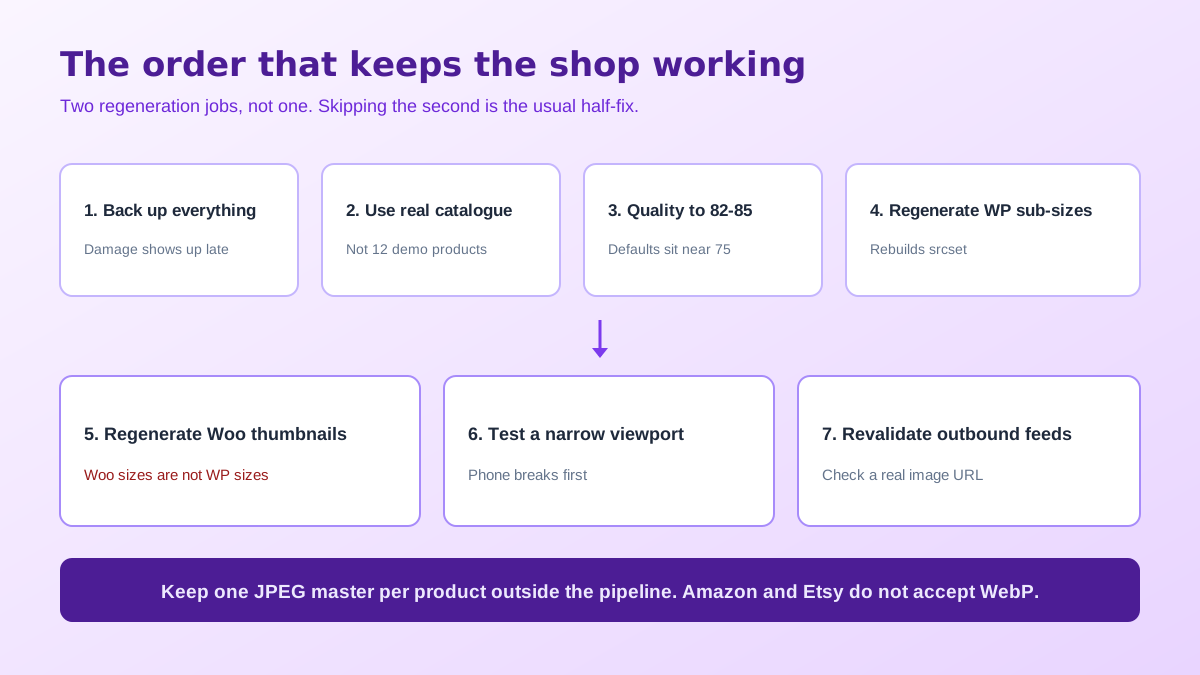
Your shop is often not the only place those files are consumed. If you push products to a marketplace, a comparison engine or an ads catalogue, the image URL travels with the record, and the receiving platform has its own list of accepted formats. Amazon accepts JPEG, TIFF, PNG and GIF for listing images and prefers JPEG. Etsy accepts JPG, PNG and GIF. Neither takes WebP. Convert your library in place and those integrations start rejecting images while your storefront looks better than ever.
This is the strongest argument for keeping a lossless master outside the delivery pipeline. Treat the WordPress media library as a rendering system and keep an original per product somewhere you can re-export from, because you will need a JPEG the moment you list the same item anywhere else. Marketplaces are also stricter about framing and background than a shop theme is, and the Amazon product image requirements spell out how far those rules go beyond file format.
WordPress compresses generated sub-sizes at quality 82 by default. Most conversion plugins pick their own number, commonly around 75, because that produces the headline saving they advertise. For a blog photograph nobody notices. On product imagery it is visible in exactly the places buyers examine: fabric weave turns mushy, brushed metal loses its grain, and a smooth gradient on packaging picks up banding. Convert one fabric close-up at 75 and at 85, view both at full size, and pick with your eyes rather than the dashboard.
Transparency is the other trap. WebP supports an alpha channel, so a cut-out PNG converts cleanly, but several plugins fall back to JPEG when they judge WebP unsupported, and JPEG has no alpha at all. That is how a transparent background becomes a black rectangle on a handful of products and nobody notices for a month. If you need clean cut-outs to start with, generate them properly rather than compressing your way into a mess, which is what the free background remover tool is for.
It is also worth being honest about the size of the prize. WebP typically lands 25 to 35 percent below a comparable JPEG at matched visual quality. That is real, and it is a fraction of what you gain by not shipping a 2000 pixel file into a 300 pixel catalogue slot in the first place. Format is the last optimisation, not the first, and the ordering matters more than most speed guides admit.
Run in that order, the conversion is boring, which is the goal. Where the WebP question tends to become interesting is when you realise how many variants of each product you now maintain: a catalogue crop, a square marketplace shot, a lifestyle frame and a mobile-safe close-up, each needing its own master. Generating those from one clean source rather than reshooting is the practical case for AI product photography in a Woo workflow, and the copy that sits beside them can come from the same product record through the WooCommerce product description generator.
Yes. WordPress has accepted WebP uploads since version 5.8, and WooCommerce simply displays whatever the media library holds. The breakage people blame on WooCommerce almost always comes from the conversion plugin rewriting files without rewriting the attachment metadata that WordPress uses to build srcset and the gallery zoom attributes.
Because the plugin replaced the original files but the registered sub-sizes were never regenerated, so the URLs stored in the attachment metadata now point at files that no longer exist. Run a media regeneration pass, then regenerate the WooCommerce shop thumbnails separately, because Woo maintains its own sizes on top of the WordPress ones.
No. Amazon accepts JPEG, TIFF, PNG and GIF for listing images, with JPEG preferred, and Etsy accepts JPG, PNG and GIF. Neither accepts WebP. If your WooCommerce store is the source of truth for a marketplace push, keep a JPEG master for every product rather than converting the library in place.
The Accept header method is safer for a shop because the markup never changes, so gallery scripts, lightbox zoom and any theme code that reads the img tag keep working. The picture element method wraps the img and is the usual cause of broken WooCommerce zoom, since the gallery reads attributes from the img it expected to control.
Around 82 to 85 for photographic products. Most converters default lower, near 75, which is fine for blog imagery and visibly wrong on fabric weave, brushed metal and gradient packaging. Compare a fabric close-up at both settings at full size before you convert several thousand files on the default.
It reduces transfer weight by roughly 25 to 35 percent against a comparable JPEG, which helps but rarely moves the score alone. If the largest element on a product page is still a 2000 pixel image served into a 600 pixel slot, the wrong size is costing you far more than the wrong format, and resizing fixes more than converting does.
On WooCommerce or WordPress? Do it inside your store.
Install the free ListingRVA AI plugin to generate studio product images and optimize listings right from your product screen. No API keys to copy: it connects your existing account and uses your plan credits.
Get the free plugin →ListingRVA AI now works inside Claude. Connect your workspace and ask Claude to generate listing copy and publish product images to your store, without leaving your editor. See the Claude connector →
Comments
No comments yet, be the first.
Leave a comment