
Bulk Product Images WooCommerce: Update a Catalogue Without Media Bloat
July 31, 2026 · 8 min read · by Aashirvad Kumar
Your credits refresh every month for as long as ListingRVA AI exists. No renewals, no annual increases, nothing to cancel.
Available on select plans. No renewals, ever.
July 31, 2026 · 8 min read · by Aashirvad Kumar
You have four hundred products and a folder of new photography, and the obvious plan is to upload the lot and move on. Two hours later the media library has gone from six thousand files to fourteen thousand, the uploads folder has grown by several gigabytes, and a handful of products have appeared twice in the shop with slugs ending in a number. A bulk product images WooCommerce update is one of those jobs that looks like a file operation and is actually a database operation, which is why it goes wrong in ways that have nothing to do with the pictures.
None of this is difficult once you know what WooCommerce is really storing and what each update route does to it. The failure modes are predictable: orphaned attachments nobody deletes, resized copies multiplying behind the scenes, and an importer that creates rather than updates because it could not match a row to an existing product. Here is what happens underneath, and how to run the same job without any of it.
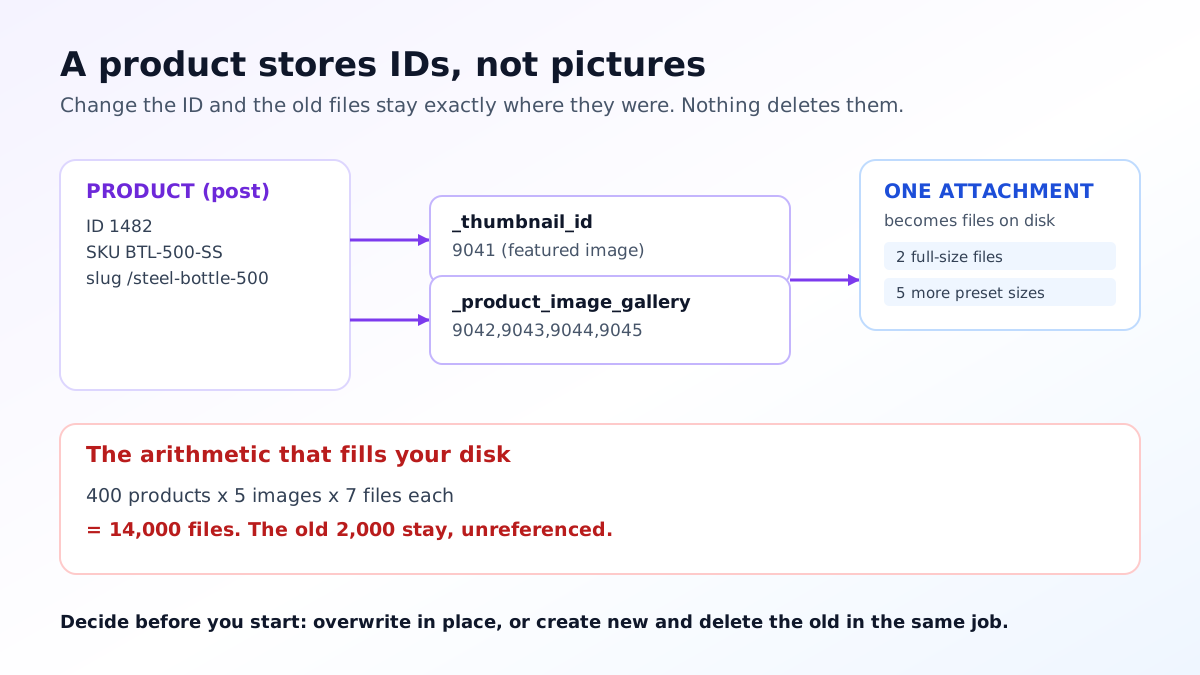
A product does not contain an image. It contains two references. The featured image is the ordinary WordPress thumbnail relationship, stored in the postmeta table under the key underscore thumbnail id, and it holds a single attachment ID. The rest of the gallery lives in a second meta key, underscore product image gallery, which holds a comma separated list of attachment IDs in the order they should display. Both are pointers to attachment posts, and the attachment posts are what point at files.
That indirection is the source of nearly every surprise. Changing a product image means changing an ID in a meta row, and nothing about that operation says anything should happen to the file the old ID pointed at. The old attachment stays in the media library, the old files stay on disk, and the only thing that changed is which record the product refers to. Multiply that across a catalogue and you have a media library full of files that no product will ever request again.
The second multiplier is resizing. WordPress generates a set of copies for every upload: thumbnail, medium, medium large at 768 pixels wide, large, plus the WooCommerce specific sizes for the single product view, the shop grid and the gallery strip. Anything wider than the big image threshold, 2560 pixels by default, also gets a scaled master alongside the original. One photograph can therefore be seven or eight files before any theme or plugin adds its own registered sizes.
Put those two behaviours together and the arithmetic is unforgiving. Replacing five images each on four hundred products means two thousand new attachments, and at seven files apiece that is roughly fourteen thousand new files, while the two thousand attachments they replaced remain exactly where they were. Nothing in WordPress removes them, because from its point of view they were never deleted, merely no longer referenced. If your imagery is coming out of a generation workflow, the same discipline that applies to a WooCommerce product description generator applies here: generate once, review once, and only then write to the store.
Disk usage is the least interesting consequence. Backups get slower and larger, media library queries crawl once the attachment count runs into six figures, and any plugin that scans attachments starts timing out. Worst of all, nobody can tell afterwards which files are safe to delete, because the only way to know is to check every attachment ID against every thumbnail and gallery meta row in the database.
The prevention is simple, and every bulk product images WooCommerce job needs it decided before the first upload rather than after the last one. Either you overwrite files in place and keep the same attachment IDs, or you accept new attachments and delete the old ones as part of the same job. What you must not do is the third option, which is to upload everything new and promise yourself you will tidy up later, because later never has the mapping information that now has.
The CSV importer is the fastest route for a large catalogue, and it is also where the duplicate products in a bulk product images WooCommerce run come from. The importer decides whether a row is an update or a new product by matching the ID or SKU column against what already exists. If the ID column is absent, the SKU column is blank for some rows, or the SKUs in your spreadsheet have picked up leading zeros or trailing spaces from a round trip through a spreadsheet application, the match fails silently and the row is treated as a brand new product.
WordPress then does what it always does with a colliding slug: it appends a number. The original product keeps its permalink and its rankings, and a near identical twin appears at the same address with a suffix, carrying your new images while the version customers and search engines know still shows the old ones. It reads as a broken permalink and it is really a failed match, which is why the fix is in the SKU column rather than anywhere near the images.
Guarding against it takes two habits. Tick the option to update existing products so a genuine match overwrites rather than duplicates, and validate your SKU column before importing by exporting the catalogue first and using that export as the skeleton for your import file. Any SKU that does not appear in the export is a row that will create a new product, and you want to know that in a spreadsheet rather than in your shop.
It is also worth remembering that the images column accepts either a full URL, which the importer downloads and adds as a new attachment, or the name of a file that already exists in the uploads directory, which it will reuse. The first value in the column becomes the featured image and the rest become the gallery in order. Reusing existing filenames is the difference between an import that adds nothing to the media library and one that adds thousands of files, and it is a single formatting decision in one column.
Before any of this touches production, take a database backup covering the posts and postmeta tables and run the whole thing on a staging copy. Reversing a bad import by hand means reconstructing meta rows for hundreds of products from memory, and there is no undo button. The same rule applies to any bulk change that writes to a live catalogue, which is the reason a careful store integration setup process stages changes rather than pushing them straight through.
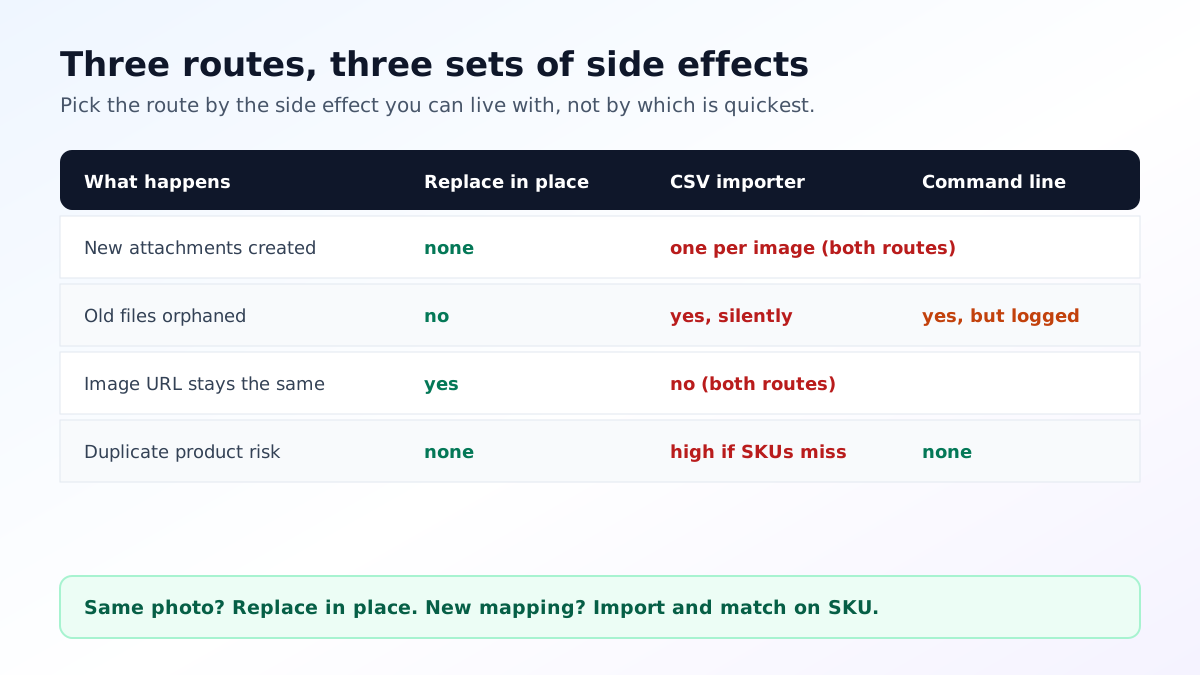
Replacing files in place is the cleanest option when the new photo is a straight substitute for the old one. You overwrite the original file on disk under its existing name, regenerate the resized copies, and everything else stays exactly as it was: same attachment ID, same URL, no orphans, nothing added to the media library. The trade is caching. Browsers, any page cache and any CDN in front of the store will keep serving the old picture until those layers are purged, so plan the purge as part of the job rather than as a surprise.
The CSV importer is the right tool when the mapping is changing, when you are adding gallery images rather than swapping them, or when products need reordering. It is the fastest way to move a whole catalogue and the most likely to create duplicates, so it lives or dies on SKU hygiene. Export first, edit the export, import the edit, and never hand write the file from scratch.
The command line is the most controllable route and the least used. Importing media against a specific product ID and setting it as the featured image in one step, then regenerating sizes in a batch, gives you a loop you can run over a list of ten products, inspect, and then run over the rest. It also produces a log, which matters more than it sounds when something has gone wrong across four hundred items and you need to know which ones were touched.
Whichever route you pick, the shape of the work is the same. Get the images right at source, keep one high resolution master per product well above what any registered size needs, and let WooCommerce derive everything else. Fixing composition, background or crop after the files are already spread across a catalogue is the expensive order of operations, and a bulk background removal tool earns its place at the start of that pipeline rather than the end.
If the damage is done, the only reliable way to identify orphans is to build the set of every attachment ID currently referenced by a thumbnail meta row or a gallery meta row, and treat everything else as a candidate. Candidate is not the same as safe to delete: attachments can also be referenced inside post content, inside page builder data, in theme options or in a slider plugin, none of which appear in those two meta keys.
So delete in stages, and treat the cleanup as the closing half of the bulk product images WooCommerce job rather than a separate chore. Take the candidate list, exclude anything referenced anywhere in post content, move the remainder out of the uploads tree rather than deleting it outright, and leave the site running for a week with the files parked somewhere recoverable. If nothing breaks, delete. This is dull advice and it is the reason people who do it this way still have their images. Getting the source photography right first is what keeps the whole cycle from repeating, which is the practical case for treating AI product photography as a catalogue process rather than a one off task, and the same reasoning behind generating copy and imagery together as described in the guide to descriptions written from images.
Not by itself. A product permalink comes from the product slug, which images never touch. The damage happens when a bulk import fails to match an existing product on ID or SKU, so WooCommerce creates a second product instead of updating the first and gives it a suffixed slug. The image job gets blamed for a matching problem.
Because WordPress treats every upload as a new attachment rather than a new version of an old one. Setting a fresh featured image detaches the previous one but does not delete it, and each upload also generates its full set of resized copies. Replacing images across a few hundred products can therefore add thousands of files that nothing references.
The featured image is the standard WordPress thumbnail relationship, stored as the post meta key underscore thumbnail id. The rest of the gallery lives in a separate meta key, underscore product image gallery, holding a comma separated list of attachment IDs in display order. Both point at attachment IDs, not at file paths.
Yes, if you replace the file on disk under its existing name and regenerate the resized copies. The URL stays stable, no new attachment is created, and nothing is orphaned. The catch is caching: browsers, page caches and any CDN in front of the site will keep serving the old picture until those layers are purged.
Match on SKU, run the update on a staging copy first, and process a batch of ten products before committing to the full catalogue. Take a database backup of the posts and postmeta tables before starting, because reversing a bad import by hand is far more work than restoring it.
Only if you replaced files in place or changed the registered image sizes. A normal upload generates its own resized set immediately. If you overwrite files directly, the old resized copies stay on disk and keep being served in listings and galleries until they are rebuilt.
On WooCommerce or WordPress? Do it inside your store.
Install the free ListingRVA AI plugin to generate studio product images and optimize listings right from your product screen. No API keys to copy: it connects your existing account and uses your plan credits.
Get the free plugin →ListingRVA AI now works inside Claude. Connect your workspace and ask Claude to generate listing copy and publish product images to your store, without leaving your editor. See the Claude connector →
Comments
No comments yet, be the first.
Leave a comment