
WooCommerce Product Image Size: Why Your Photos Look Blurry
July 25, 2026 · 8 min read · by Aashirvad Kumar
Your credits refresh every month for as long as ListingRVA AI exists. No renewals, no annual increases, nothing to cancel.
Available on select plans. No renewals, ever.
July 25, 2026 · 8 min read · by Aashirvad Kumar
You upload a sharp product photo, open the shop page, and it looks soft. Not broken, not obviously wrong, just slightly mushy in a way that makes the whole store feel cheaper than it is. Then you open the single product page and the same image looks fine. Nothing in the media library explains it, and re-uploading changes nothing.
This is the most common WooCommerce product image size problem, and it is almost never about the file you uploaded. It is about which of the several copies WooCommerce made is being displayed, and whether that copy is large enough for the space the theme puts it in. Once you understand that WordPress is quietly generating and choosing between multiple versions of every image, the blurriness stops being mysterious and becomes a settings problem with a specific fix.
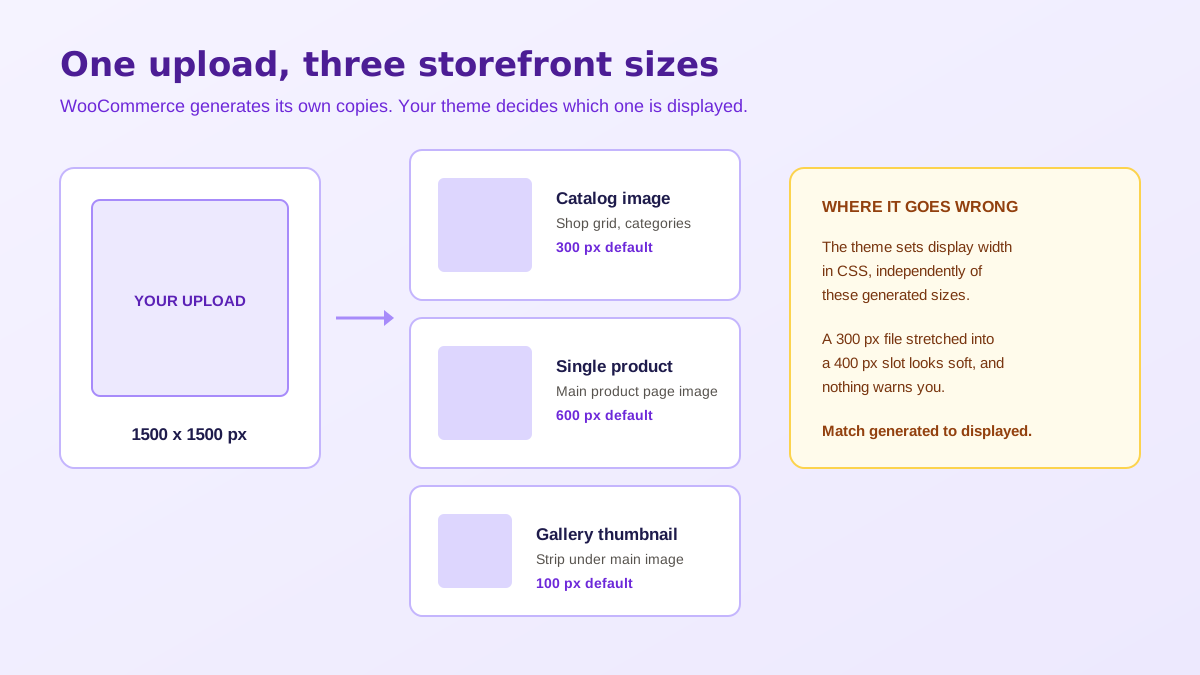
There is no single WooCommerce product image size. WordPress on its own already creates several copies of every upload: thumbnail, medium, medium large, large, and on newer installs additional 1536 and 2048 pixel versions. WooCommerce adds three of its own on top, and these are the ones your storefront actually uses. Understanding which is which tells you where to look when something renders badly.
woocommerce_thumbnail). The tiles in your shop grid, category pages, related products and upsells. Default width 300 pixels, and cropped square unless you change it. This is the size that goes wrong most often, because grid slots on wide screens are frequently larger than 300 pixels.woocommerce_single). The main image on the product page. Default width 600 pixels, never cropped, so it keeps whatever aspect ratio you uploaded. This is why the product page often looks fine while the shop grid does not.woocommerce_gallery_thumbnail). The small strip beneath the main image. Default 100 pixels square, and rarely a problem unless your theme displays them larger.You control the first two under Appearance, then Customize, then WooCommerce, then Product Images. There are only three fields there: main image width, thumbnail width, and thumbnail cropping. That is the entire official interface, and it is worth knowing that these settings govern what gets generated, not what gets displayed. The theme decides display size in CSS, entirely independently, and the mismatch between those two numbers is the whole story.
If you upload an 800 pixel image and your theme displays the main product image in a 700 pixel column on a retina screen, the browser is asked to fill roughly 1400 physical pixels with 800 pixels of data. The result is soft, and no setting will recover detail that was never captured. Product photos taken on a phone are usually fine here; images pulled from a supplier catalogue or a marketplace listing frequently are not, because they were already downscaled once before you got them.
Since WordPress 5.3, any image whose longest edge exceeds 2560 pixels is scaled down to 2560 pixels and saved with a -scaled suffix. Your original stays on the server but the site serves the scaled version. This is sensible behaviour and it catches almost nobody out on its own, but combined with an aggressive optimization plugin it can mean the file being served is two compression passes removed from what you uploaded.
This is the actual cause in most cases. Your theme lays out the shop grid at, say, 400 pixels per tile on desktop. WooCommerce generated a 300 pixel catalog image. The browser stretches 300 into 400, and on a high-density display it stretches 300 into 800. Nothing errors, nothing warns you, the image is simply upscaled and soft. Open your browser inspector, hover the image, and compare the rendered size against the natural size. If rendered is larger, you have found your problem.
Changing the catalog width from 300 to 600 changes what WooCommerce generates from that moment on. Every image already in your media library keeps the copies it was born with. WooCommerce does queue a background regeneration for its own sizes, and on a small store it usually finishes quietly, but on a catalogue of any size it stalls or partially completes often enough that you should not rely on it.
Image optimization plugins are worth running, but the default quality setting on several of them is tuned for blog photography, not product photography. A hero shot of a landscape tolerates compression artefacts that a product on a plain background does not, because flat backgrounds show banding immediately. If your images went soft the same week you installed a compression plugin, that is not a coincidence. The clean fix is to start from images that were built at the right size and quality, which is what the free background remover tool and the rest of our generation pipeline output by default, rather than compressing a bad source harder.
Upload square, at 1500 by 1500 pixels. That single recommendation resolves most of the causes above at once, and the reasoning is worth understanding rather than taking on faith.
Square matters because WooCommerce crops catalog images to 1:1 by default, and a mixed set of portrait and landscape uploads produces a shop grid with inconsistent framing, where some products fill their tile and others float in it. It is the single most visible signal of an amateur store. Sizing at 1500 keeps you under the 2560 pixel scaling threshold so WordPress leaves your file alone, gives roughly double the pixels of the largest common display size so high-density screens stay crisp, and leaves the zoom feature enough detail to actually be useful when a buyer inspects a texture or a seam. Going larger does not help: at 3000 pixels WordPress scales you down to 2560 anyway, and you have paid the upload and storage cost for nothing.
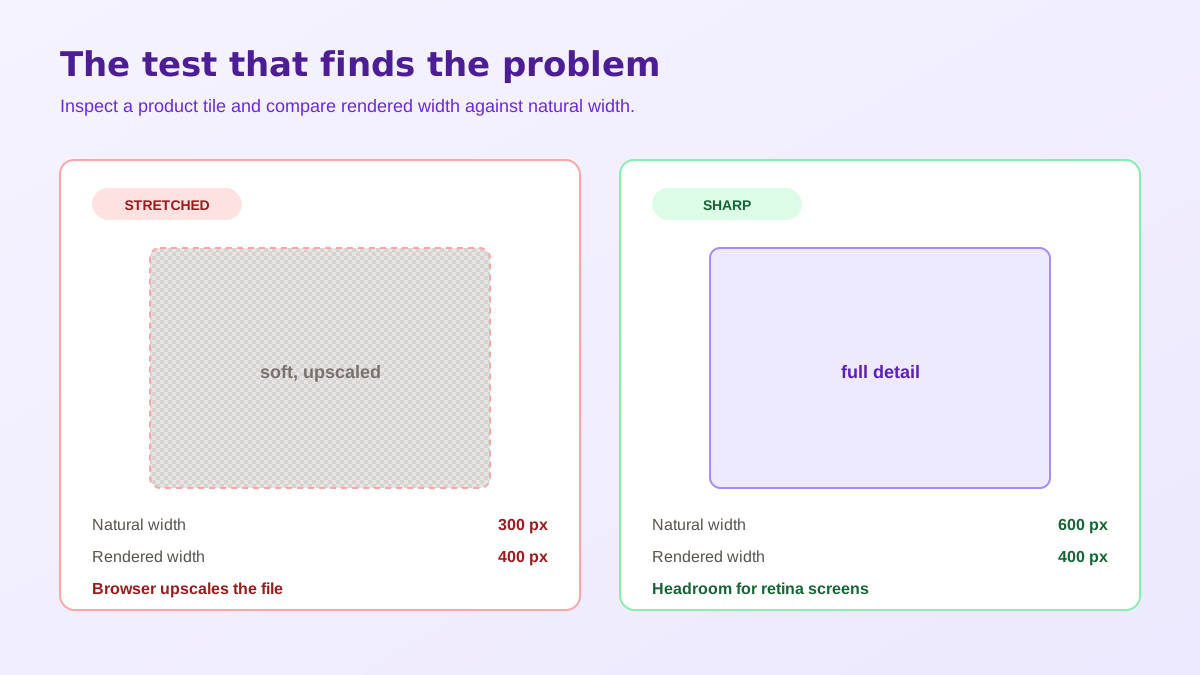
Rather than copying a WooCommerce product image size from a tutorial, measure your own theme. Open your shop page on a desktop browser, right click a product tile, choose Inspect, and read the rendered width of the image element. Whatever that number is, set your catalog width to at least that, and ideally to double it if you care about high-density screens. Repeat on a single product page for the main image width. On most modern themes you will land somewhere around 600 for catalog and 800 to 1000 for single, both meaningfully higher than the WooCommerce defaults, which were chosen when typical screens were smaller.
There is a trap here worth naming. If the Product Images section is missing from your customizer entirely, your theme has declared image dimensions in code through add_theme_support, which deliberately removes those fields. That is not a bug and you should not fight it by editing the theme, because a theme update will overwrite you. Either accept the theme's numbers, which are usually chosen to fit its layout, or override them from a child theme. Themes that hard-code small dimensions are the reason some stores cannot fix blurriness through settings at all.
Once the widths are right, every existing image needs rebuilding. The dependable route is WP-CLI, run over SSH on your host: wp media regenerate --yes. It walks the whole library, reports progress, and can be re-run safely. If you have no command line access, a regeneration plugin does the same job through the admin, more slowly and with a real chance of timing out on shared hosting, so run it in batches. Either way, do this once after the settings change rather than repeatedly, and clear any page cache and CDN cache afterwards, because a CDN will happily keep serving the old soft file for hours after you fixed it.
Regeneration also multiplies storage. Each product image already carries five or six WordPress sizes plus three WooCommerce ones, and larger widths mean larger copies. On a catalogue of a few thousand products this is the difference between a manageable uploads directory and a hosting plan upgrade, so it is worth disabling WordPress sizes your theme never uses before you regenerate rather than after.
It is tempting to treat all of this as housekeeping, but product images carry more of the purchase decision than most store owners assume, and the gap between a sharp catalogue and a soft one shows up in the numbers rather than in comments. The product image conversion statistics put a number on how much of that decision the images are really carrying. The practical consequence is that image work has a better return than most theme tweaking, and it is worth doing once, properly, at the point where images enter the store.
The same discipline applies wherever else your catalogue is listed, and the specifications are not the same on every platform, which is what catches sellers out when they syndicate a WooCommerce catalogue outward. Amazon draws those lines in different places, which the Amazon image requirements guide spells out field by field. Shopify sets its own ceiling and zoom threshold, both listed in the Shopify product image size guide.
Work down that list in order and the WooCommerce product image size problem resolves in almost every case, because each line removes one of the five causes. The reason it feels intractable when you first hit it is that the symptom is identical whatever the cause, so guessing at fixes in the wrong order produces no visible change and you conclude the setting does not work. Writing the copy that sits beside those images is the other half of the same page, and the WooCommerce product description generator handles it across a catalogue rather than one product at a time.
Upload square images at 1500 by 1500 pixels. That sits comfortably under the 2560 pixel scaling threshold so WordPress keeps your file intact, it is roughly double the largest size most themes display so it stays sharp on high-density screens, and it gives the zoom feature enough detail to be useful. Going to 3000 pixels does not help, because WordPress will scale it down anyway.
Almost always because the generated size being displayed is smaller than the slot it sits in, so the browser stretches it. The usual causes are a source file that was too small, WordPress scaling anything over 2560 pixels, a low thumbnail width setting, sizes that were never regenerated after a settings change, or an optimization plugin compressing too aggressively.
Appearance, then Customize, then WooCommerce, then Product Images. You get main image width, thumbnail width and thumbnail cropping. If those fields are missing entirely, your theme has declared its own image dimensions in code, which removes the settings from the customizer by design.
Yes. Changing a width setting only changes what WooCommerce generates for future uploads. Every image already in your library keeps its old dimensions until it is regenerated. WooCommerce queues a background job for its own sizes, but on a large catalogue the reliable route is the WP-CLI command wp media regenerate.
Both, in opposite directions, which is why the generated sizes matter. Serving a 1500 pixel file into a 300 pixel grid slot wastes bandwidth and hurts Largest Contentful Paint. Serving a 300 pixel file into a 600 pixel slot looks cheap and costs conversions. Correct intermediate sizes plus srcset let the browser pick the right file for each device.
The default is 100 pixels, which is fine for a row of four or five thumbnails under the main image. It only becomes a problem on themes that display gallery thumbnails larger than 100 pixels, where you will see the same stretching effect in miniature. Check the rendered width in your browser inspector before changing it.
On WooCommerce or WordPress? Do it inside your store.
Install the free ListingRVA AI plugin to generate studio product images and optimize listings right from your product screen. No API keys to copy: it connects your existing account and uses your plan credits.
Get the free plugin →ListingRVA AI now works inside Claude. Connect your workspace and ask Claude to generate listing copy and publish product images to your store, without leaving your editor. See the Claude connector →
Comments
No comments yet, be the first.
Leave a comment