
Shopify Variant Images: Why Your Swatch Shows the Wrong Colour
August 6, 2026 · 8 min read · by Aashirvad Kumar
Your credits refresh every month for as long as ListingRVA AI exists. No renewals, no annual increases, nothing to cancel.
Available on select plans. No renewals, ever.
August 6, 2026 · 8 min read · by Aashirvad Kumar
A shopper clicks the sand swatch and the photo stays black. They click olive and it stays black. Eventually they either add the wrong colour to the basket or leave, and you find out weeks later from a returns note that says the item was not the colour shown. Broken shopify variant images are one of the few store faults that actively generate refunds rather than just losing sales.
The frustrating part is that nothing looks broken in the admin. The variants are there, the swatches render, the picker updates the price. What is missing is the link between a variant and a specific media item, and Shopify will let you publish a product with that link half made without warning you once.
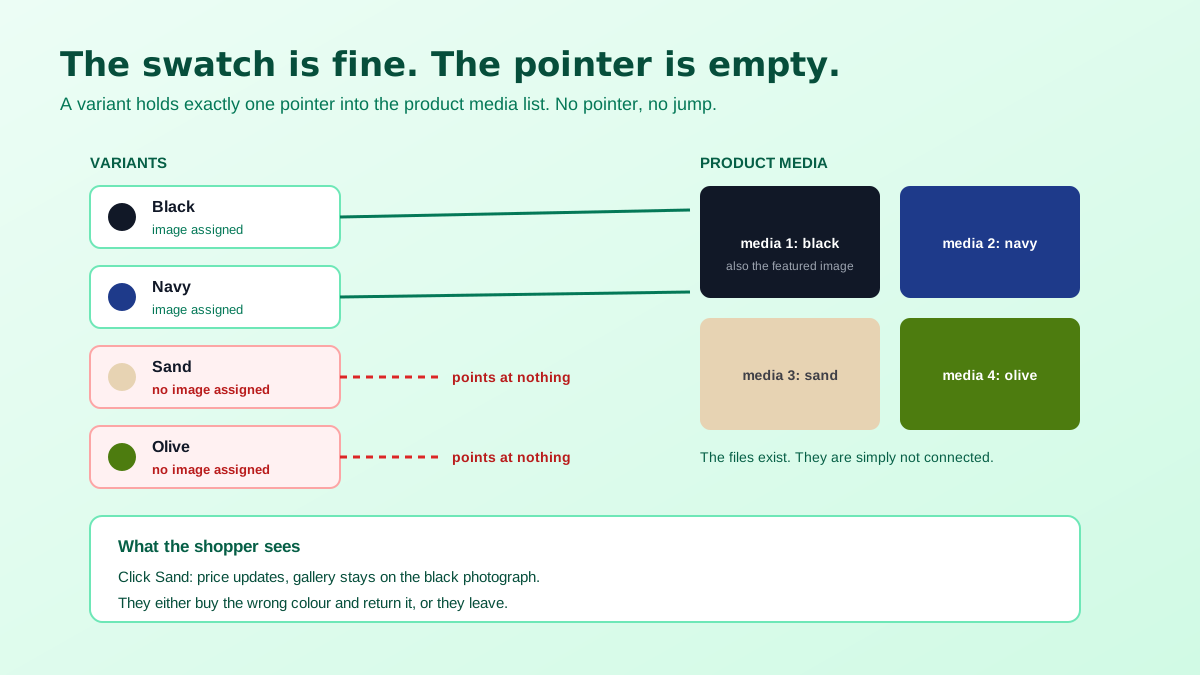
A Shopify product holds a list of media. A variant holds a pointer to exactly one of those media items, its featured image. That is the entire native mechanism. When a shopper picks a variant, the theme reads that pointer and moves the gallery to the matching media item. If the pointer is empty, there is nothing to move to, so the gallery simply stays where it was, which is the first image in the list.
This is why the symptom presents as "the swatch shows the wrong colour" rather than "the image is missing". Nothing failed loudly. The theme did what it was told, and what it was told was nothing. Before blaming the theme, open the variants table and check whether every single variant has an image against it, including the ones nobody ordered last quarter.
Sellers reasonably expect that picking blue will show four photographs of the blue version. Shopify does not do that on its own, because a variant points at one media item. Themes and apps that offer it implement grouping on top, usually by reading a convention from the image alt text or from a metafield, and then filtering the gallery to media that matches the selected option value.
The consequence is that the convention has to be followed exactly. If your theme groups on alt text and three of your forty files have a stray space or a different spelling of the colour, those three drop out of every group and reappear in the general gallery. Check your theme documentation for the exact expected format before uploading a full range, because renaming media after the fact is slow work.
The first is simple omission on new variants. A colour gets added months after the original launch, the photographs are uploaded to the gallery, and the assignment step is skipped because the images are visibly there. Every subsequent audit looks fine at a glance, since the media exists, and the fault only shows when someone actually clicks that swatch on the storefront.
The second is re-uploading. An assignment points at a media item, not at gallery position two. Delete an image to replace it with a better crop and every variant that pointed at the old item is now unmapped, silently. This is the most common cause of a range that used to work and suddenly does not, and it is why a photography refresh should always be followed by a pass through the variants table. Re-uploads are also the moment dimensions drift, so it is worth checking the replacement against the Shopify product image size specifications while you are in there.
The third is bulk edits and imports. Product CSV imports and bulk editors set the variant image by URL or by position depending on the tool, and a re-import that omits the column can clear existing assignments rather than leave them alone. Export before you import, always, so you have the previous mapping to compare against rather than a memory of what it used to be.
The fourth is inconsistent framing across the set. Even a perfectly mapped gallery looks broken when the black version was shot tight and the sand version was shot wide, because the jump between them reads as a page glitch rather than a colour change. The gallery is a comparison device and it only works when the only thing changing is the product. Keeping the crop, distance and background identical across a range matters more here than it does anywhere else, and a consistent set is easier to enforce with a repeatable process than with a note in a shared folder. Stripping backgrounds to a uniform white with a product image background remover removes most of the visible mismatch in one step.
The fifth is the collection grid, which most sellers never think of as part of this problem. Grid tiles render the product featured image, meaning the first item in the media list, not the variant a shopper might care about. A theme that shows swatches on the grid has to look each variant image up, and plenty of themes do not. If one colour drives most of your sales, that colour should be first in the media list regardless of what the launch photography order was. Collection pages carry their own set of indexing quirks that interact with this, which the write up on the wrong Shopify URL indexed goes through.
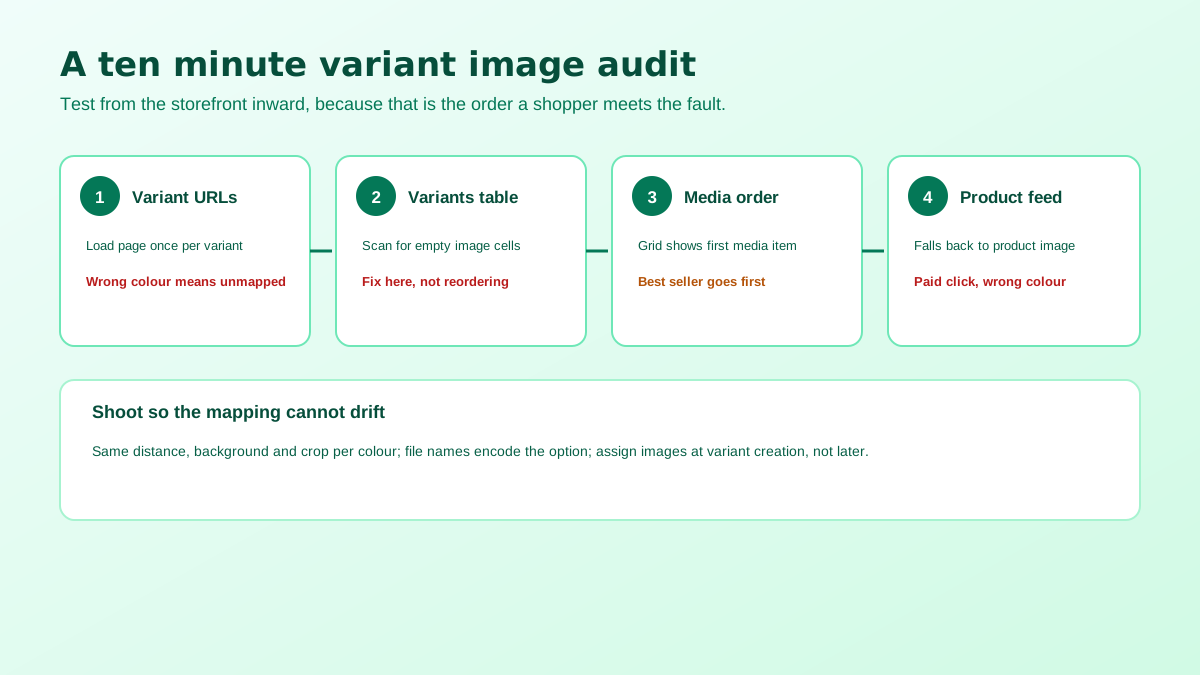
Start on the storefront, not in the admin. Open the product page and append the variant parameter for each variant in turn, which loads the page with that option preselected. This is how paid traffic, feed traffic and shared links arrive, and it exercises the mapping without any clicking. Any variant that loads showing a different colour to the one named in the picker is unmapped, and you now have a list.
Then open the variants table and sort or scan for empty image cells, which is the same fault seen from the other side. Fix them there rather than by reordering media, because reordering changes what the collection grid and the feed use and can create a second problem while solving the first. Once the assignments are complete, reload each variant URL again to confirm rather than assuming the save took effect.
Finally check the downstream consumers. Product feeds submit variants as individual items and take the image from the variant where one is set, falling back to the product image where it is not, so an unmapped variant is advertised in the wrong colour and the mismatch is only discovered after you have paid for the click. Feeds have become the primary surface for a lot of product discovery, which is the argument behind the piece on the Google AI shopping feed outranking the page itself.
Worth adding to the audit: check what happens on a phone, because the gallery on a narrow viewport is usually a swipeable carousel rather than a thumbnail strip, and a variant jump that reads clearly on a desktop can be invisible on mobile if it happens below the fold. Most stores take the majority of their traffic on phones, so a mapping that only demonstrably works on a wide screen has been verified in the least important place. Select each variant on an actual device and watch whether the visible frame changes without the shopper needing to scroll.
Ranges that follow this are boringly reliable, and ranges that do not tend to break again three months after being fixed. The underlying reason is that shopify variant images are the only part of a product page where a data relationship, rather than a file, decides what a shopper sees. Files are easy to check because they are visible. Relationships are invisible until someone clicks the swatch you never click.
The production side of this used to be the expensive part, since a nine colour range meant nine identical setups and a day of retouching to keep them consistent. Generating the alternate colourways and lifestyle contexts from one clean master shot removes most of that cost, and it makes consistency the default because every frame comes from the same source. That is the practical case for AI product photography in a variant heavy catalogue, where the number of frames scales with the option count rather than with the product count. Getting the angles right on that first master matters more than anything else, and the product photography angle checklist is a reasonable starting point before you shoot the range.
Almost always because the selected variant has no image assigned to it. When a variant carries no featured image the theme has nothing to jump to, so the gallery stays on whatever was showing, which is usually the first product image. The swatch is working correctly, the mapping behind it is empty.
Natively a variant has exactly one featured image. Showing a whole set of photos per colour is a theme or app behaviour, most commonly implemented by grouping media using the image alt text or a metafield. If you need four photographs per colour, confirm your theme supports grouping before you upload forty files.
Because the assignment points at a specific media item, not at a position in the gallery. Deleting an image and uploading a replacement creates a new media item, so every variant that pointed at the old one is left with nothing. Replace images one at a time and reassign, or expect to redo the whole mapping.
Variants keep one URL, one set of reviews and one page to optimise, which is usually the stronger choice. Separate products per colour make sense when the colours have genuinely different demand, different descriptions or different price points, and when you are prepared to maintain the internal links between them so shoppers can move across the range.
Collection grids render the product featured image by default, which is the first image in the gallery rather than the selected variant. Themes that show colour swatches on the grid have to look up each variant's image, and many do not. If a colour matters commercially, make it the first image or use a theme that supports grid level swatches.
Yes. Feeds submit variants as separate items and take the image link from the variant where one exists, falling back to the product image where it does not. An unmapped variant is advertised with the wrong colour, which is worse than not advertising it, because the click is paid for and the mismatch is discovered after the click.
ListingRVA AI now works inside Claude. Connect your workspace and ask Claude to generate listing copy and publish product images to your store, without leaving your editor. See the Claude connector →
Comments
No comments yet, be the first.
Leave a comment