
Shopify Image Page Speed: What Actually Fixes LCP
August 8, 2026 · 8 min read · by Aashirvad Kumar
Your credits refresh every month for as long as ListingRVA AI exists. No renewals, no annual increases, nothing to cancel.
Available on select plans. No renewals, ever.
August 8, 2026 · 8 min read · by Aashirvad Kumar
Search Console flags your product pages for poor Largest Contentful Paint. You install a compression app, remove two unused apps, turn on lazy loading everywhere, and the number does not move. Meanwhile the speed score in your Shopify admin says 62 and has said 62 for three months. Almost all shopify image page speed work fails this way, because the fixes people reach for first are aimed at bytes, and the thing being measured is when one specific pixel finishes painting.
On a product page that pixel is nearly always the featured image. Understanding which decisions delay it, and which popular tactics have no mechanism to help at all, is the difference between an afternoon of real improvement and a year of tinkering.
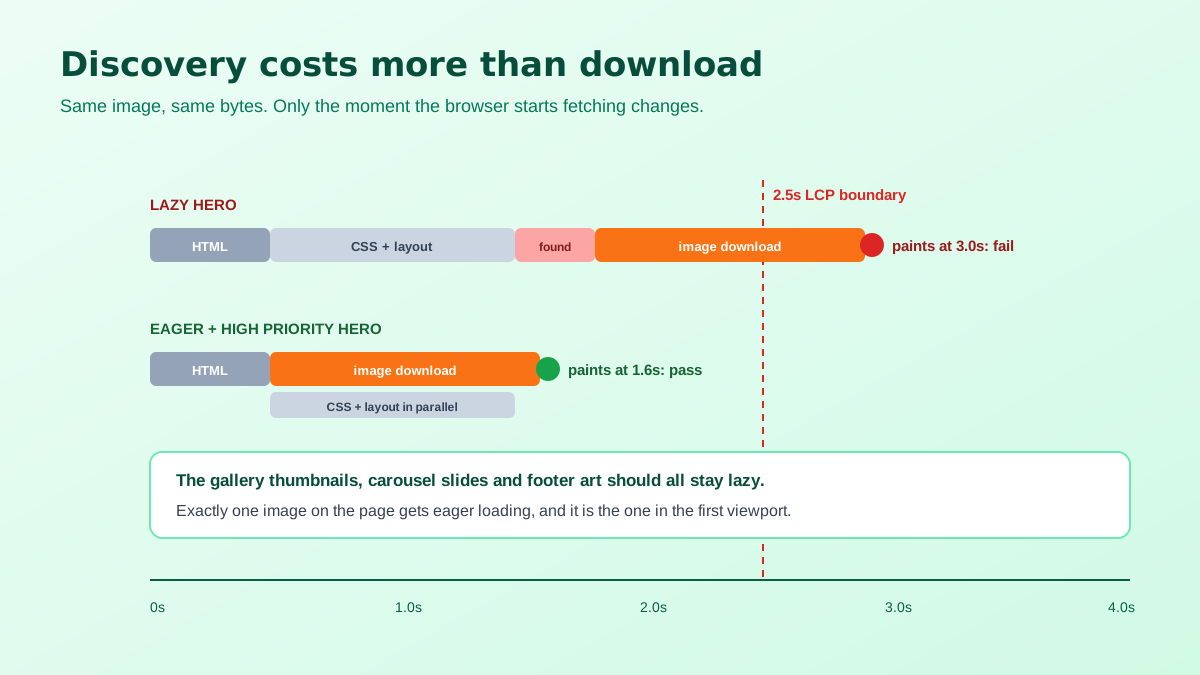
Largest Contentful Paint records the moment the largest visible element in the initial viewport finishes rendering. It is not an average, it is not page weight, and it is not how long the page takes to be fully interactive. On a Shopify product template the candidate is the featured image, occasionally the product title if the image is unusually small. Google treats 2.5 seconds at the 75th percentile of real visits as the boundary for a good score.
That definition has consequences people skip. Making a footer image smaller cannot help, because the footer is not in the viewport. Deferring JavaScript helps interactivity and often does nothing for LCP. And an image that is only 90 kilobytes can still produce a terrible score if the browser does not discover it until late, because time to discovery and time to download are separate costs and the first one is usually larger.
It also matters that the metric is scored on real visits rather than on your machine. The 75th percentile means a quarter of your traffic can be slower than the number you are judged on, so the tail of cheap phones on congested mobile networks pulls the result down even when your own testing looks fine. Anyone diagnosing shopify image page speed from a desktop browser on office broadband is looking at the best case and treating it as typical, which is why field data and lab data so often tell opposite stories.
Start with request order. If the featured image carries a lazy loading attribute, the browser will not fetch it until layout has run and it can tell the image is in view, which throws away the earliest and cheapest opportunity to start the download. Load that one image eagerly, mark it as high priority so it outranks the rest of the queue, and lazy load everything else including the remaining gallery thumbnails. This one change is frequently worth more than every other item on this list combined.
Second, request the right size. Shopify's CDN resizes on delivery when your theme asks for a width, so a 2048 pixel master can be served as a 700 pixel file at no cost to you. The failure is a theme, or a section you copied, requesting the original for a slot that renders at half that. Ask for the width you will display, provide a sensible set of candidates for other viewports, and let the browser pick. The full picture of which dimensions Shopify actually uses is in the Shopify product image size guide.
Third, stop the carousel from loading itself. A slideshow or gallery that fetches all eight slides on page load puts seven unnecessary downloads in direct competition with the one the metric is watching. Only the first slide is visible, so only the first slide should load eagerly. Check this even on well-reviewed themes, because it is a common regression after an update.
Fourth, declare dimensions. Width and height attributes, or an explicit aspect ratio, let the browser reserve the correct space before the file arrives. That is primarily a Cumulative Layout Shift fix rather than an LCP one, but a page that reflows twice during load usually paints its largest element later as well, so the two travel together.
Now the tactics that consume weekends and change nothing. Compression apps come first. Shopify's CDN already converts to a modern format for browsers that support it and already resizes on request, so an app that re-uploads a more aggressively compressed source is shaving a small percentage off a file that was going to be transformed anyway. If your theme is requesting a 2000 pixel image for a 600 pixel slot, no amount of source compression fixes the underlying error.
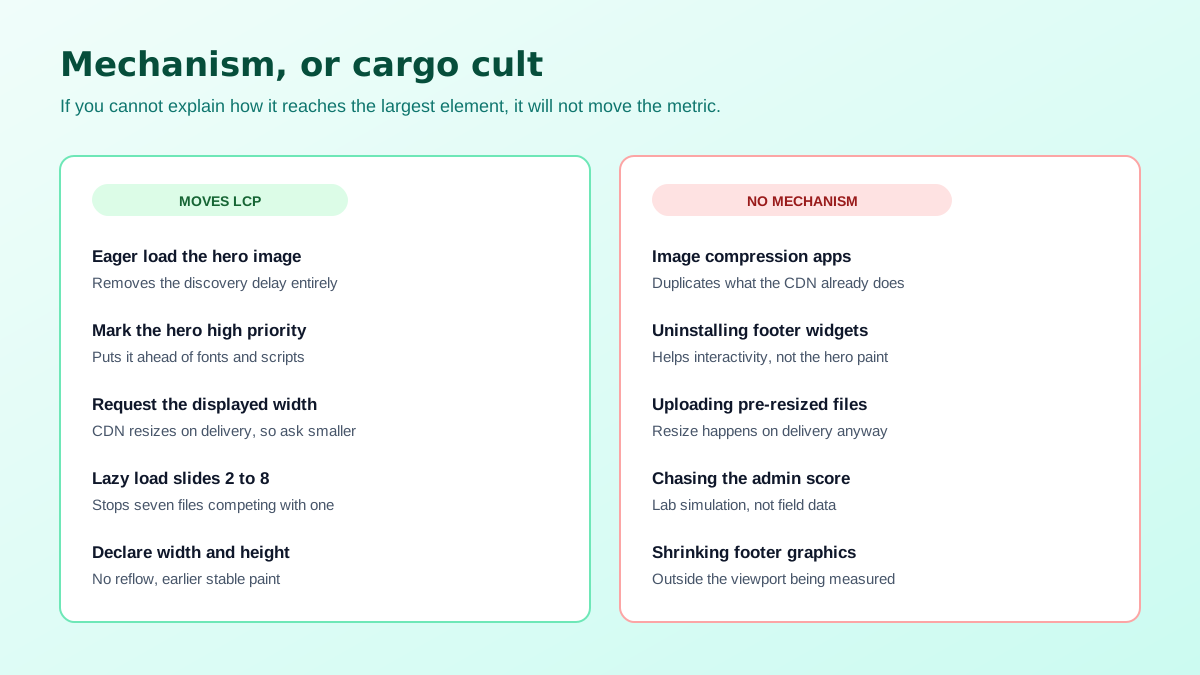
Second is the admin speed score. It is a lab measurement on a simulated device, run against a sample of your pages, and it is useful only as a rough direction of travel. Core Web Vitals in Search Console come from real visits by real people on real hardware, which is what search actually consumes. A store can hold a respectable lab score and fail the field data because its shoppers are on cheaper phones and worse connections than the simulation assumes. When the two disagree, believe the field data.
Third is app removal as a reflex. Uninstalling apps genuinely reduces script execution, which shows up in interaction metrics and in the lab score. It rarely touches an image-bound LCP. If your largest element is a photograph, removing a review widget from the footer is not going to make the photograph arrive sooner. Do the removal for its own reasons, then measure the right metric before crediting it.
Fourth is uploading pre-resized files. Because the CDN resizes on delivery, shipping a set of small masters buys you nothing and costs you the headroom for zoom views, larger hero sections and any future theme that asks for more. Upload one generous master per product, around 2048 pixels square for most catalogues, and let delivery do the rest. Shopify accepts far larger than that, so this is a working preference rather than a limit.
Test one real product page, not the homepage, on a throttled mobile profile. Identify the LCP element explicitly rather than assuming, because on some themes it turns out to be a promotional banner or a block of text. Record the time to first byte, the time the image request starts, and the time it finishes, and you will immediately see whether your problem is discovery, transfer or server response. Most stores that assume they have a file size problem discover they have a discovery problem.
Then repeat the measurement after each single change. Bundling five fixes together and celebrating a two second improvement teaches you nothing about which one mattered, and the next theme update will silently reverse whichever one it was. Improving shopify image page speed is a sequence of small, individually verified edits, and the log of what worked is worth as much as the result.
Give the change time before you judge it, too. Field data in Search Console is aggregated over a rolling window of recent visits, so a fix deployed on Monday will not show a clean result on Tuesday. Lab tools respond immediately and are the right tool for confirming that a specific request now starts earlier, while the field report is the right tool for confirming that shoppers felt it. Use the first to verify the mechanism and the second to verify the outcome, and do not panic in the gap between them.
There is a quieter point underneath the technical one. The reason images dominate this metric is that they dominate the page, which is also why they dominate the buying decision, and the product image conversion statistics consistently show that gap over copy. Speed work is therefore about protecting an asset that is already carrying the page, not about shrinking it until it stops working.
Which is worth remembering before anyone compresses a fabric close-up into mush to win half a second. Keep a clean master, cut backgrounds properly with the free background remover tool rather than by over-compressing edges, and generate the variants your template needs from that source. The same discipline applies to the words next to the image, where a consistent structure across a catalogue is faster to produce with the Shopify product description generator than by hand, and where visibility increasingly depends on machine-readable structure as well as speed, which the piece on Shopify Google AI Overviews takes further.
Partly. The Shopify CDN resizes on request when you ask for a width, and it serves a modern format to browsers that advertise support, so the file leaving the CDN is usually smaller than the one you uploaded. What it will not do is decide which size your theme requests, and that decision is where nearly all of the wasted bytes live.
They measure different things. The admin score is a lab test run on a simulated device, while Core Web Vitals in Search Console come from real visits on real hardware and connections. A store can score well in the lab and fail in the field because actual shoppers are on slower phones than the simulation assumes.
Lazy load everything except the one image that is likely to be the Largest Contentful Paint element. Deferring the hero image is the single most common self-inflicted LCP problem, because the browser will not even begin fetching it until layout has run. Load that one eagerly and lazy load the rest of the gallery.
Less than they claim, because they mostly duplicate work the CDN already does on delivery. If your theme is requesting a 2000 pixel file for a 600 pixel slot, compressing the source changes the number of bytes slightly while the wrong size keeps costing you multiples of that. Fix the requested width first and re-measure before installing anything.
Upload one generous master, around 2048 pixels square for most products, and let the CDN generate every smaller size on request. Uploading pre-resized copies gains nothing because the resize happens on delivery anyway, and it costs you the headroom you need the moment a theme update introduces a larger zoom view.
It can, badly, if every slide loads at once. Only the first slide is visible, so the rest compete for bandwidth with the image the metric is actually measuring. Load the first slide eagerly, lazy load the remainder, and check that your theme is not preloading the entire set on page load.
ListingRVA AI now works inside Claude. Connect your workspace and ask Claude to generate listing copy and publish product images to your store, without leaving your editor. See the Claude connector →
Comments
No comments yet, be the first.
Leave a comment