
Amazon Bullet Points Disappeared? Why They Get Hidden or Suppressed
July 2, 2026 · 8 min read · by Aashirvad Kumar
Your credits refresh every month for as long as ListingRVA AI exists. No renewals, no annual increases, nothing to cancel.
Available on select plans. No renewals, ever.
July 2, 2026 · 8 min read · by Aashirvad Kumar
It is one of the most common panics on the Seller Central and Sellers-Ask-Sellers forums: a seller opens their live listing and the bullet points are gone. Sometimes they are collapsed behind a new "About this item" toggle, sometimes the whole section has vanished, and Seller Support often has no idea a change was even made. Before you rewrite anything or open a case, you need to know which of two completely different problems you actually have, because the fixes are opposite.
This is not a generic "how to write bullets" guide. It is about why bullets disappear, hidden versus suppressed, and exactly how to get them back, plus how to write bullets that survive Amazon's rules and still sell when the layout collapses them.
Open the live product page on a phone, not just the desktop Seller Central editor. Then check:
Why this distinction matters: if your bullets are merely collapsed under "About this item", rewriting them to appease a rule you did not break wastes time and can hurt a listing that was fine. If they are suppressed, no amount of "See more" clicking brings them back until you remove what triggered it. Diagnose before you edit. The product image conversion statistics put a number on how much of that decision the images are really carrying.
Amazon has been steadily pushing a mobile-first layout where the "About this item" block sits near the image and shows only the first few bullets before a "See more" toggle. Sellers reported this rolling out across whole catalogs, not single listings, which is the tell that it is a platform display change and not something you did. It is not a penalty. But it changes the math of writing bullets.
When only the first two or three bullets are visible on a phone, and the majority of Amazon traffic is mobile, your first two bullets carry almost all the persuasion weight. Our free Amazon bullet points generator drafts all five benefit-first, so your strongest point leads instead of hiding in bullet four. Bury your strongest benefit in bullet four and most shoppers never scroll to it. So the practical response to the "About this item" collapse is not to fight it, it is to front-load: put your single most compelling, most-searched benefit in bullet one, your strongest differentiator in bullet two, and treat bullets three through five as depth for the shoppers who expand. Amazon draws those lines in different places, which the Amazon image requirements guide spells out field by field.
Suppression is the more frustrating case because Amazon rarely tells you why. The recurring pattern sellers describe on the forums is telling: bullets vanish, the seller strips out one specific word, and the bullets come straight back. The usual culprits:
Work through this from cheapest to most drastic, and stop as soon as they return:
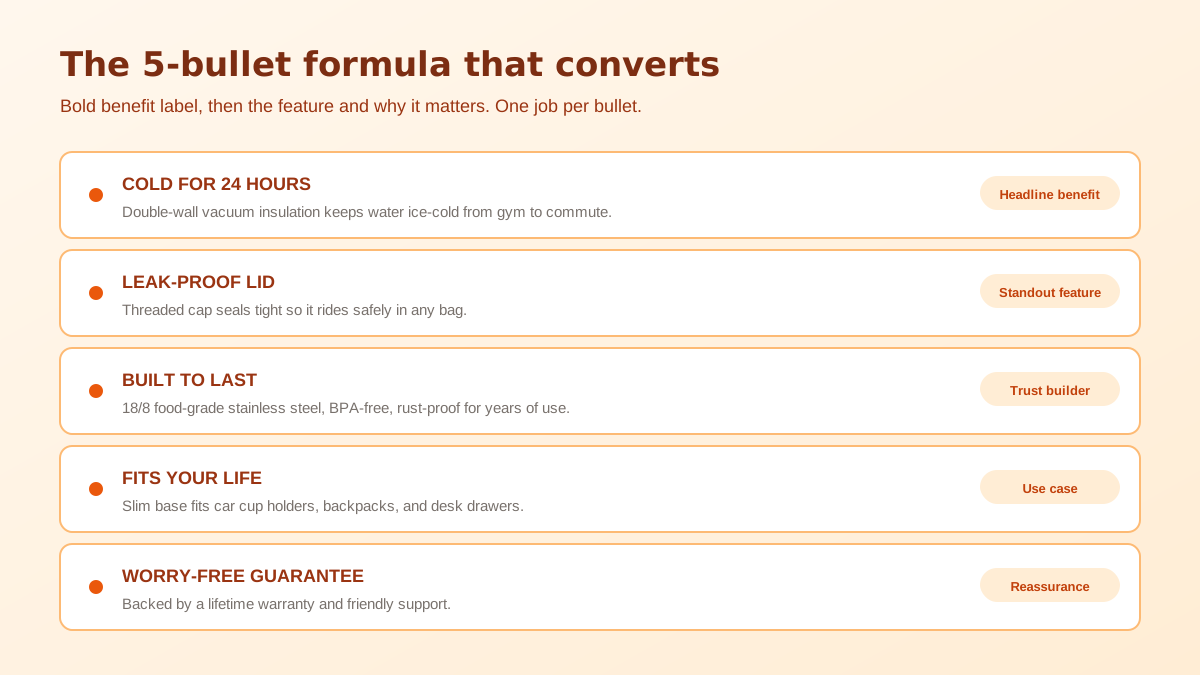
Once you know what gets bullets hidden or pulled, the writing rules follow naturally. Lead every bullet with a short benefit label in caps, then a sentence that explains the feature and why it matters, with your two strongest benefits first so they land above the "See more" fold. Keep each bullet to roughly 150 to 250 characters so it reads on mobile, weave in secondary keywords naturally because bullets are indexed, and stay strictly on compliant, provable language. Here is a full set for an insulated water bottle, ordered for a collapsed layout:
Notice there is no "authentic", no "best", no "guaranteed", no symbols, and the two benefits most likely to win a shopper sit in positions one and two. That is a set built to render, to index, and to convert whether it is fully shown or collapsed.
Writing five compliant, front-loaded bullets for every SKU by hand is slow, and one careless "best" can pull a whole section. ListingRVA AI generates keyword-optimized, compliance-aware Amazon bullets, titles, and descriptions from your product details in seconds, alongside AI product photography for the images that carry the click. Pull your terms with the free Amazon keyword generator and load the leftovers into your backend search terms. To fix the whole listing at once rather than section by section, use our Amazon listing optimization tool. Worth knowing first: we wrote up AI listing optimization limits, because bullet ordering is one of the things it will not decide for you.
50 free credits, no credit card. Compliant, front-loaded Amazon copy from your product details.
Start free →Two different things get confused here. Either Amazon is collapsing your bullets behind the "About this item" toggle (a display change, your bullets still exist), or Amazon has suppressed them for content, usually an unprovable claim like "authentic" or "#1", a prohibited word, or HTML and special characters. Check the live page on mobile: a "See more" toggle means display; a missing section means suppression.
It is the label Amazon now puts above your bullets, and on many listings it collapses all but the first couple behind a "See more" link, especially on mobile. Your bullets are still there and still indexed, but shoppers only see the top ones unless they expand, so your first two bullets do the heavy lifting.
Unprovable or prohibited claims: "authentic", "guaranteed", "best", "#1", "cure", "FDA approved", money-back or warranty promises in restricted categories, and any medical claim. Special characters, emojis, and HTML can also drop bullets. Sellers routinely report bullets reappearing the moment they remove the offending word.
Remove prohibited or unprovable claims and special characters, capitalize the first letter of each bullet, then resubmit using a full inventory-file update rather than a partial edit. Changes usually reflect within 15 minutes to 48 hours. If they still do not return and there is no content issue, open a case with the ASIN and a screenshot.
It varies by layout and device, but on collapsed mobile listings often only the first two or three are visible before the toggle. That makes bullet one and bullet two your most valuable real estate, lead with the two benefits most likely to win the click and the sale.
ListingRVA AI now works inside Claude. Connect your workspace and ask Claude to generate listing copy and publish product images to your store, without leaving your editor. See the Claude connector →
Comments
No comments yet, be the first.
Leave a comment